How to Check BIOS Firmware, TPM and Secure Boot for COD
10 de noviembre de 2026 · 2 min de lectura
En esta página
Check the exact Call of Duty security message before updating BIOS firmware. TPM availability, Secure Boot configuration and outdated firmware are separate checks; a working TPM can still have a firmware compatibility issue.
Checked November 10, 2026 against Activision’s TPM, Secure Boot and BIOS guidance.
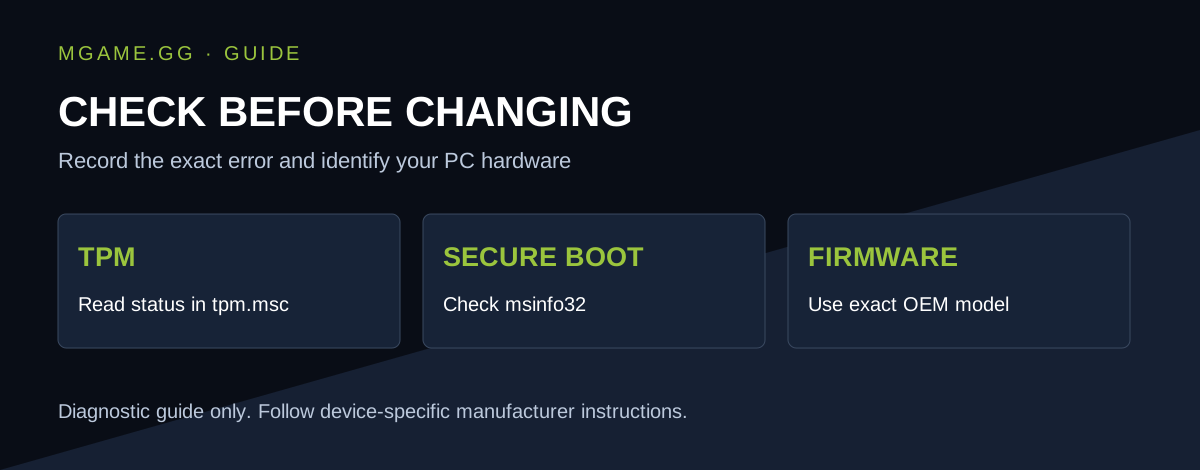
Original guide graphic by mgame.gg.
How to check TPM in Windows
Press Windows + R, enter tpm.msc and read the status. Activision says a working TPM should report that it is ready for use. If Windows cannot find a compatible TPM, it may be disabled or unsupported.
Also record Manufacturer Version under TPM Manufacturer Information. This is different from simply seeing that TPM 2.0 exists.
How to check Secure Boot
Open Windows + R, run msinfo32 and inspect the BIOS mode and Secure Boot state. Activision’s expected configuration is UEFI and Secure Boot On.
Write down what Windows actually shows before changing anything. That gives support a useful starting point if a later setting change does not resolve the message.
How do you update BIOS firmware for Call of Duty?
Use your PC or motherboard manufacturer’s instructions for your exact model and hardware revision. Activision’s guide links to manufacturer support pages and describes cases where newer firmware is needed even with TPM enabled.
A laptop’s support package is not interchangeable with a similarly named desktop board’s firmware. Do not flash a file chosen only because a forum user with a different system reported success. Firmware installation steps and recovery options depend on the device.
What information should you collect first?
| Record | Why it helps |
|---|---|
| Exact game message | Separates attestation from unrelated launch errors |
| PC or motherboard model and revision | Identifies the correct support page |
| Installed BIOS version | Lets you compare the manufacturer’s release notes |
| TPM manufacturer version | Relevant to Activision’s compatibility guidance |
| BIOS mode and Secure Boot state | Shows whether configuration needs investigation |
This is a diagnostic checklist, not a universal flashing procedure. Use the manufacturer’s instructions for prerequisites, power requirements and recovery preparation before an update.
What if the error remains?
Recheck the reported values after restarting. Send the exact message and recorded system details to the manufacturer or Activision’s linked reporting route. Do not assume a failed security check is the same thing as an account ban.